Skip to content

Archivalis AI - Files In detail

Here you find what each of the seven features does, what is free and what Archivalis Pro unlocks, what leaves your computer and which languages there are. Further down are all the program’s screens to enlarge; the short overview is on the home page.

To the home page

Features in detail

Organize

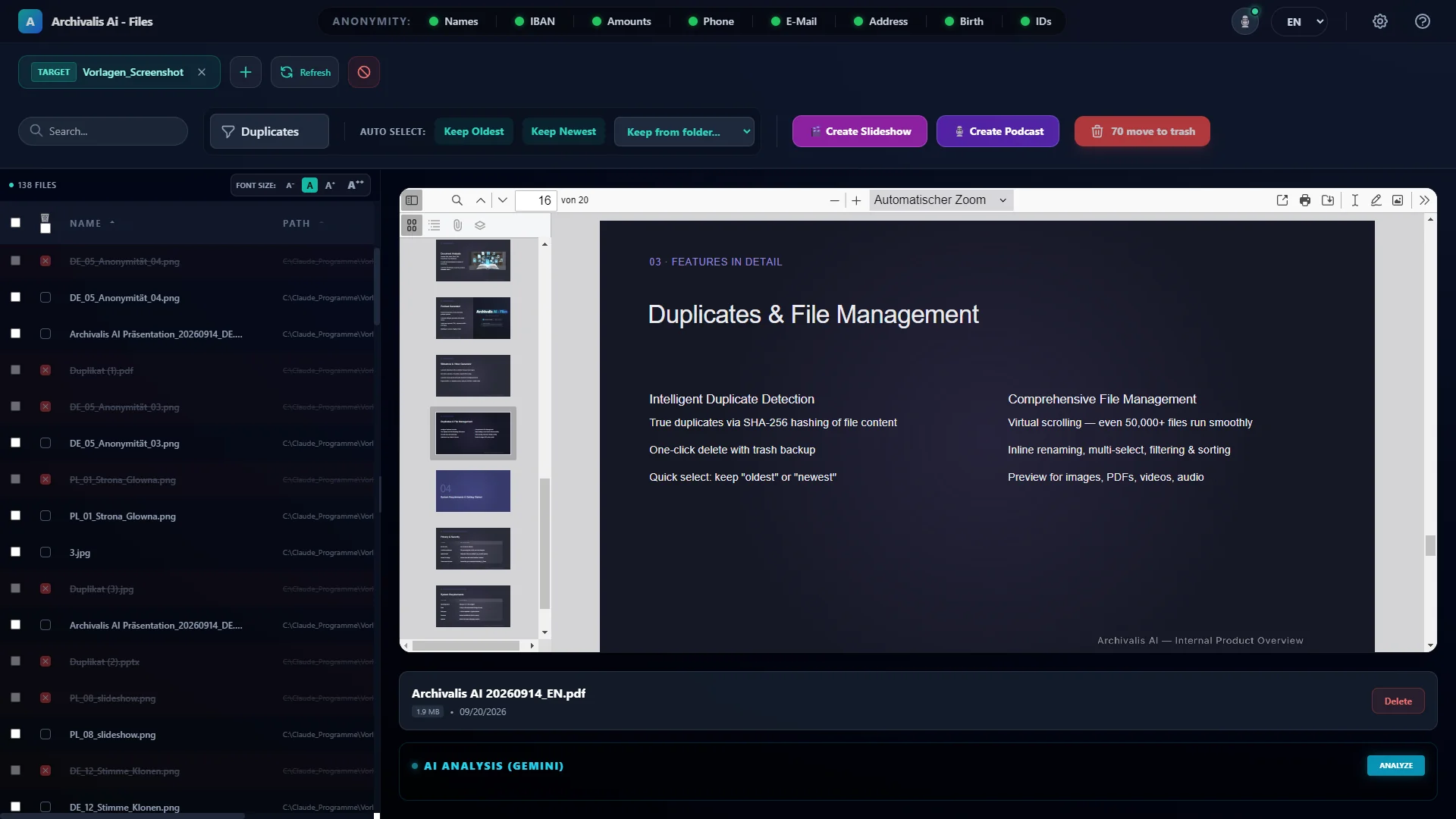
Find and sort out duplicate files

Content-based duplicate detection (SHA-256)

Detects identical photos, videos and documents by their content, not their name – even when the file names have nothing in common. Small files are compared in full, large ones by samples from the start, middle and end plus the file size. With a quick selection (“keep oldest” / “keep newest”) and a safe recycle bin, so nothing is lost.

Duplicate view: marked duplicates in the file list, with “Keep oldest” and “Keep newest” buttons

Sort photos by the date they were taken

Hardware date analysis for photos and videos

An end to wrong file modification dates. Archivalis AI reads the real capture times straight from the EXIF headers of your photos and from the native MP4/MOV container atoms (mvhd). Automatic sorting by year and month; optionally, detection of shooting locations via OpenStreetMap (switched off by default).

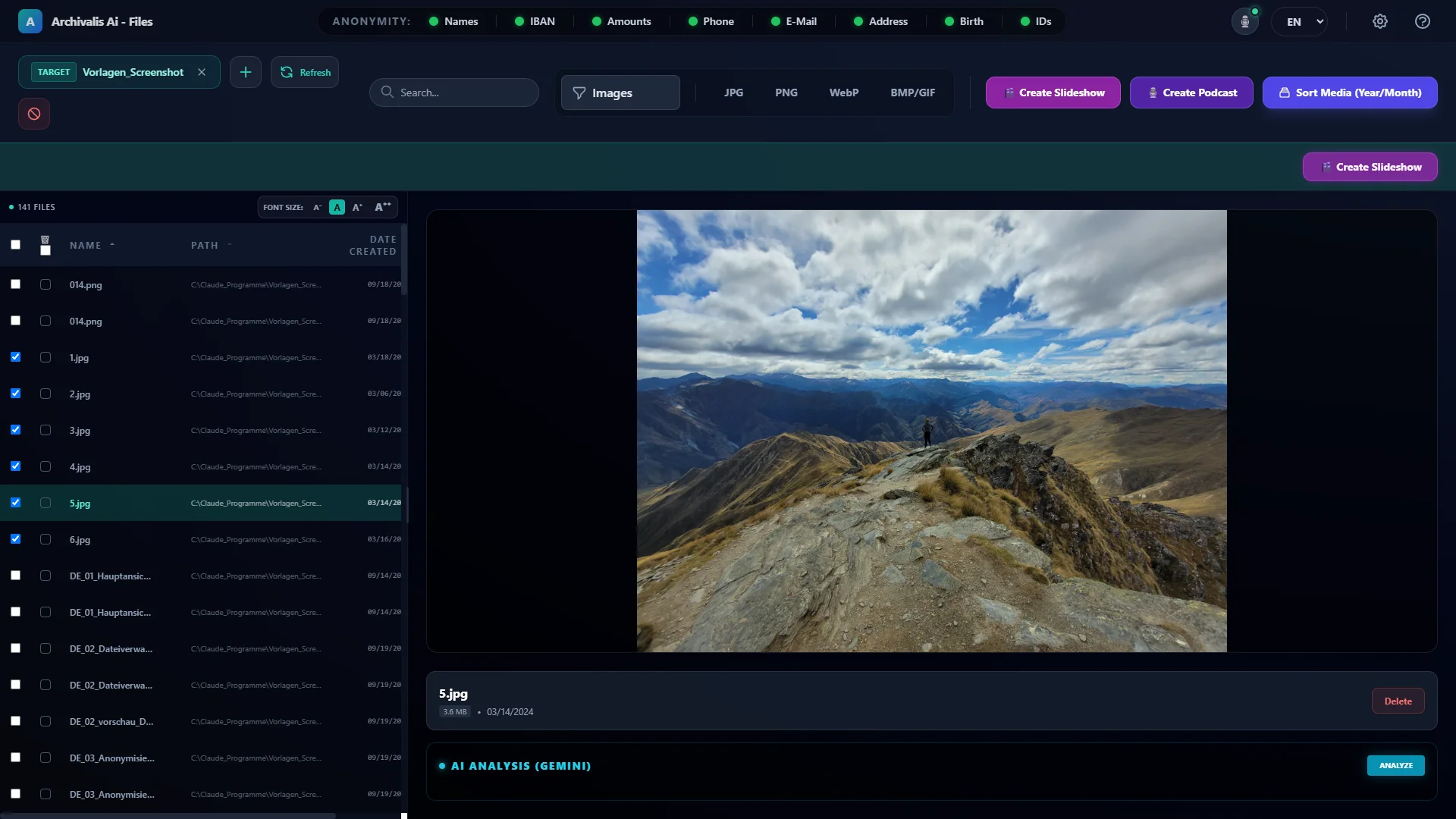
Archivalis AI – Files main window: file list with photos and a large landscape photo preview on the right

Organize your music library, fill in MP3 tags

Music manager & intelligent ID3 tagger

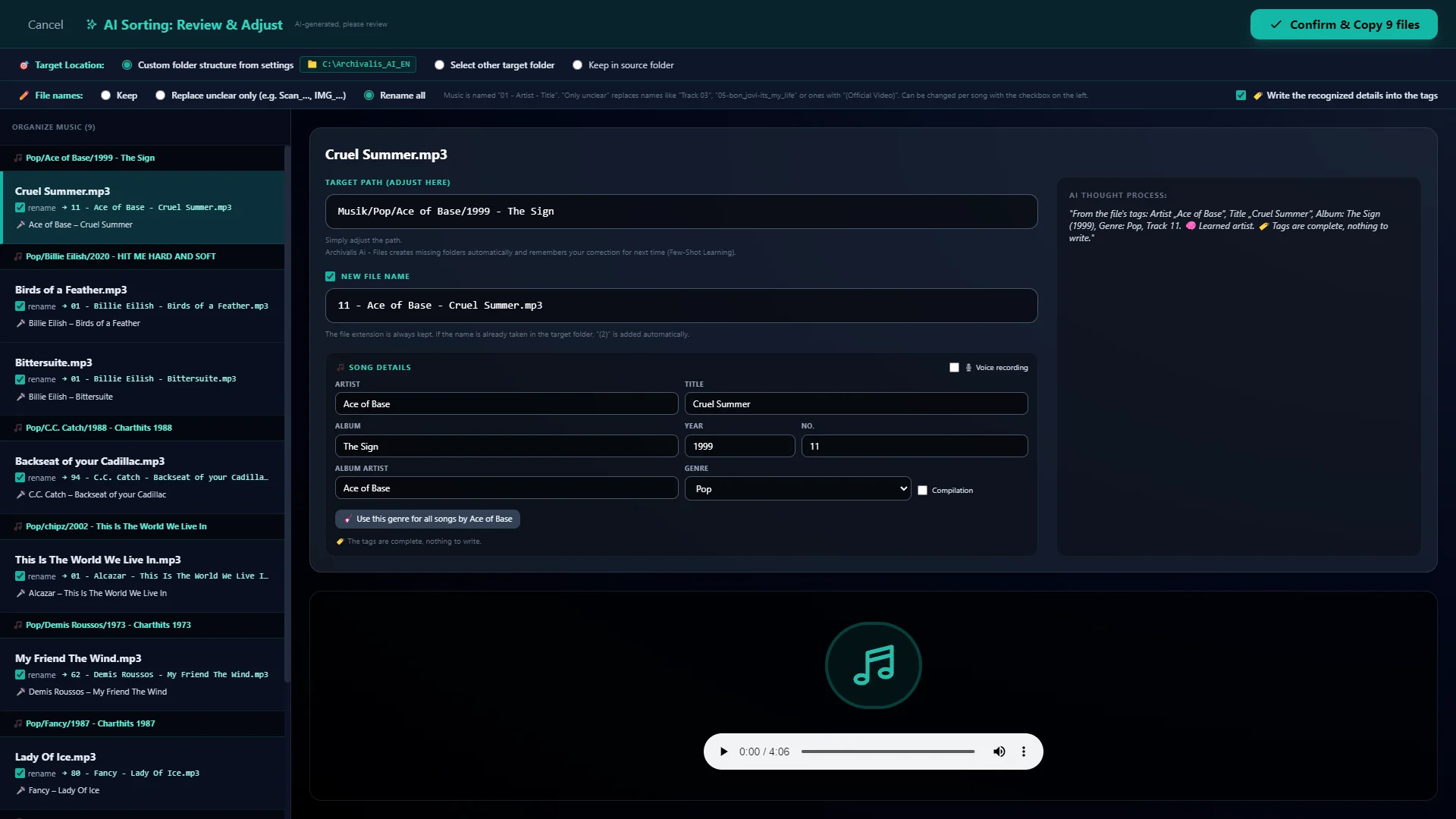
Sorts your music library by genre / artist / year - album with consistent file names (01 - Artist - Title.mp3). Based on existing tags and file names this is free; with Archivalis Pro, the AI of your choice (local or cloud) fills in missing details. Before anything moves you check it all in the review window, and the recognized tags are written right into the file if you want.

Music sorting: songs grouped by album, with target folder, new file name and the recognized song details on the right

Summarize documents

AI document analysis

Reads and structures PDFs, Word documents (.docx), spreadsheets (Excel, CSV) and Markdown files. One click gives you a structured Markdown summary. With a local model the file stays on your computer while it happens. Part of Archivalis Pro.

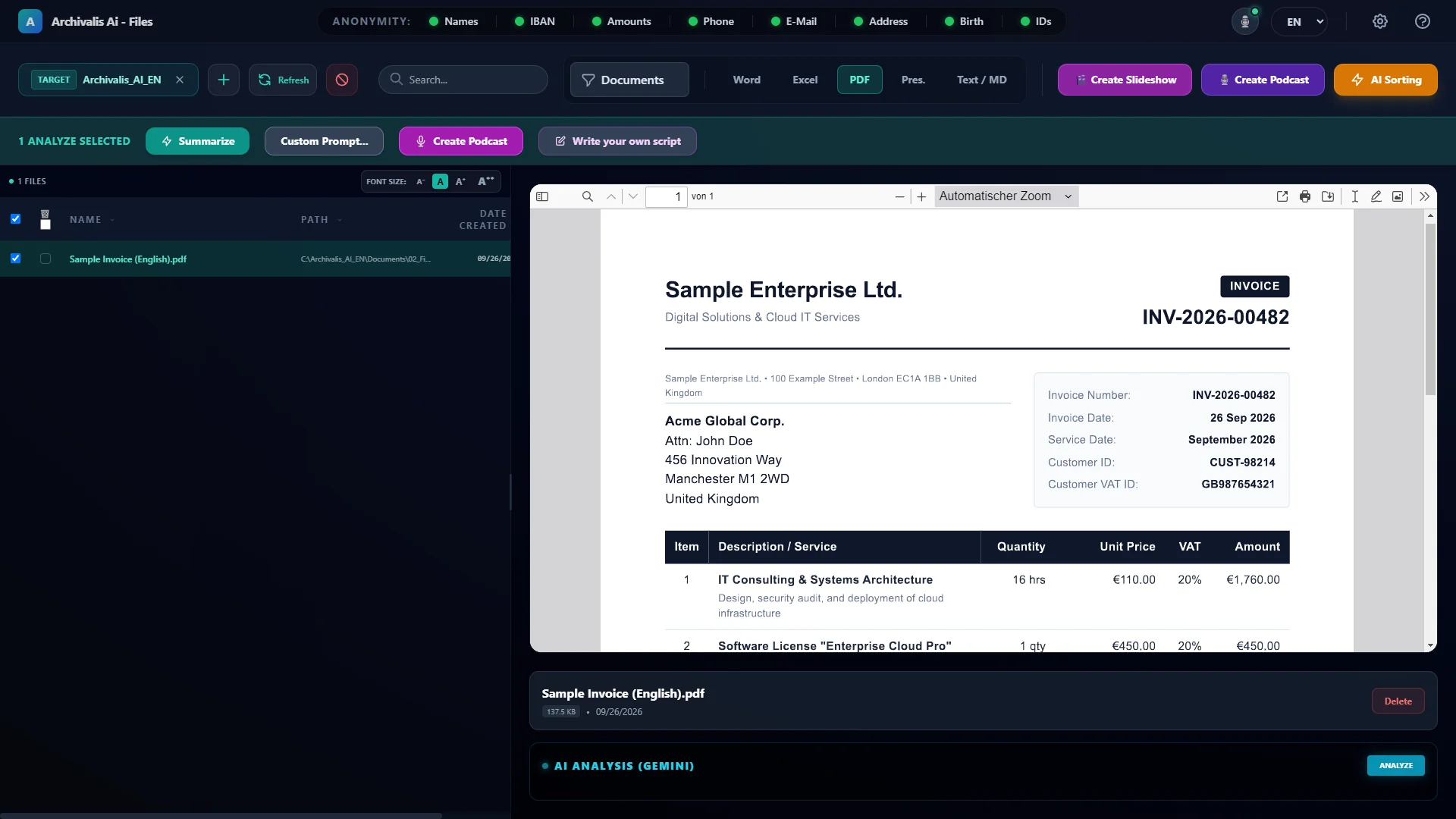
Document view: an English sample invoice in the built-in PDF preview, with summary and podcast buttons above
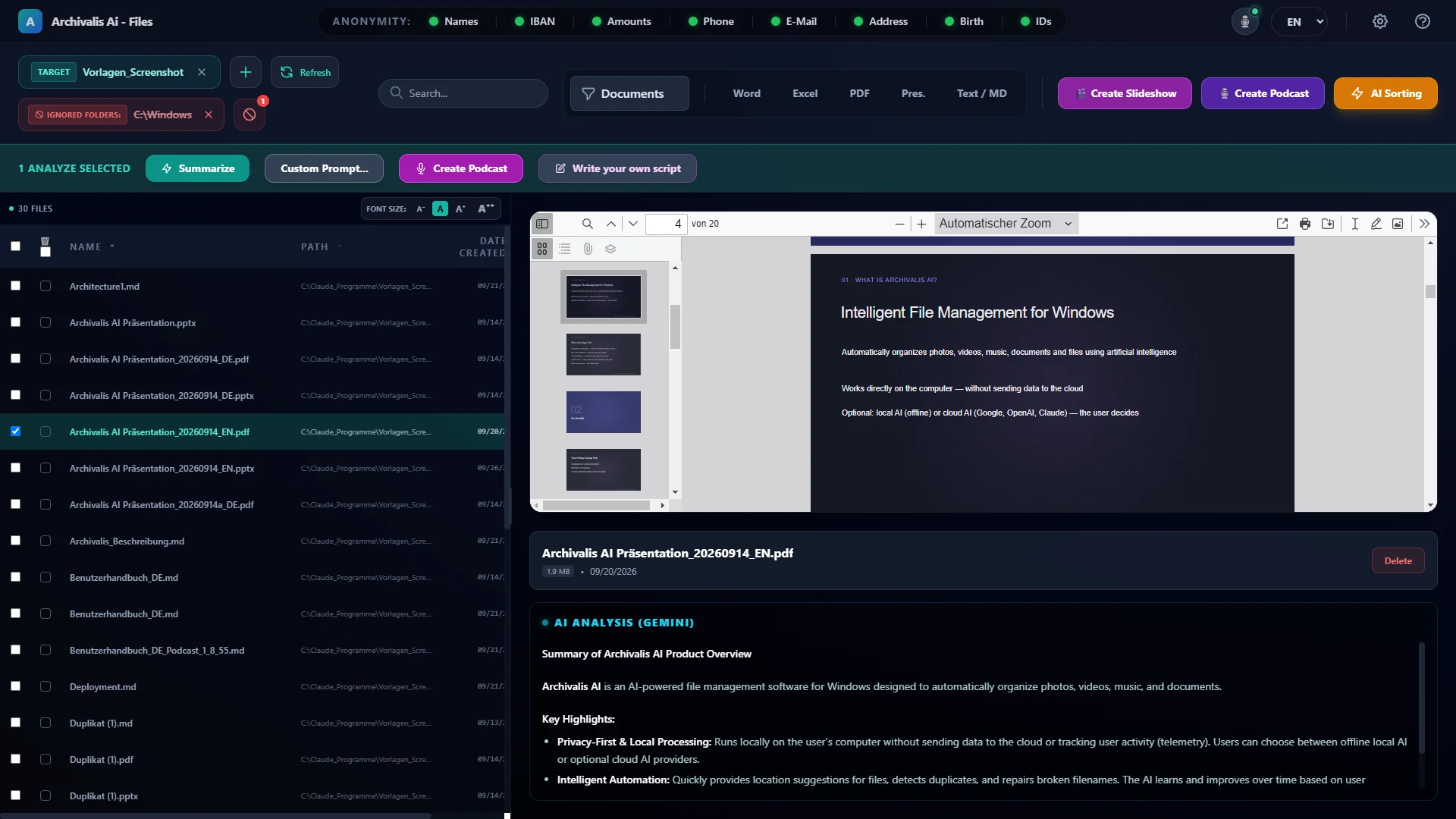
Archivalis AI – Files main window: file list on the left, a PDF presentation preview on the right, the AI summary of the document below, the anonymization bar at the top
Intelligent file management for Windows. Photos, videos, music and documents in one place – with preview, AI analysis and one-click anonymization.
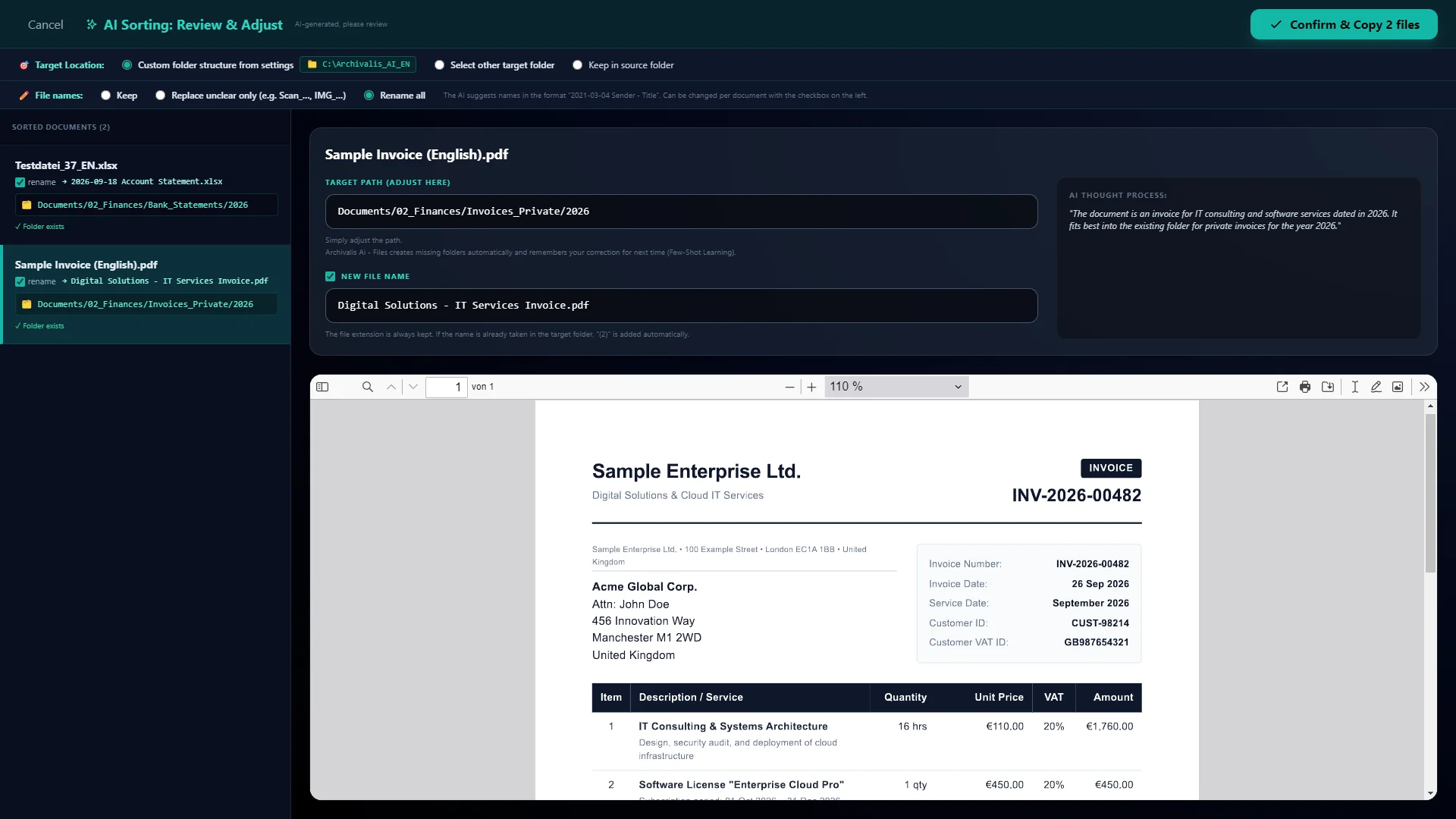
AI sorting review window: sorted documents on the left, target folder, new file name, AI reasoning and an invoice preview on the right
AI sorts and names your documents. Target folder, a clear file name and the AI's reasoning – you review everything before a single file is moved.
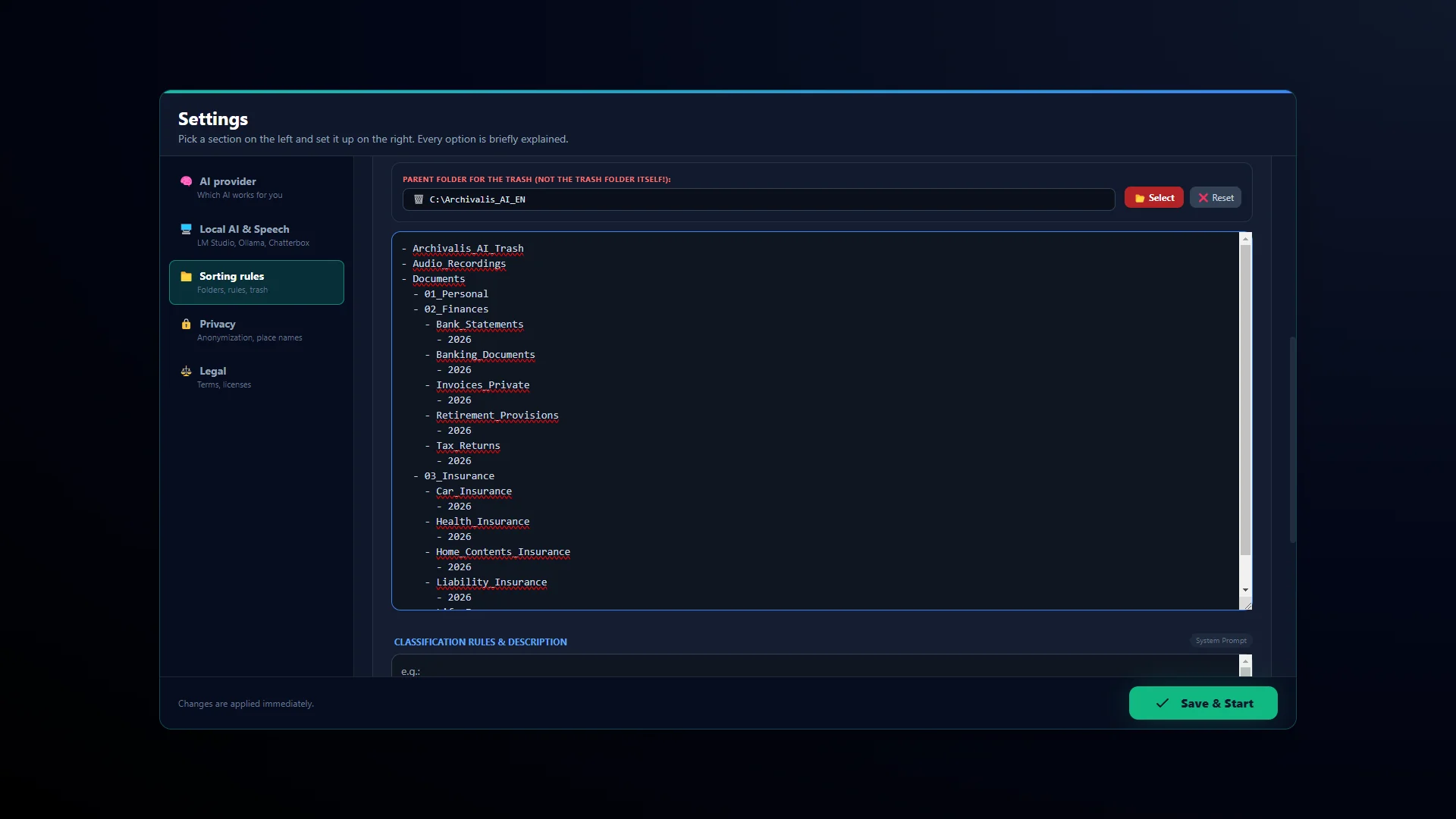
“Sorting rules” settings: your own folder structure with subfolders by topic and year
Your folders, your order. Archivalis reads your existing folder structure and files new documents right there, instead of forcing a foreign structure on you.
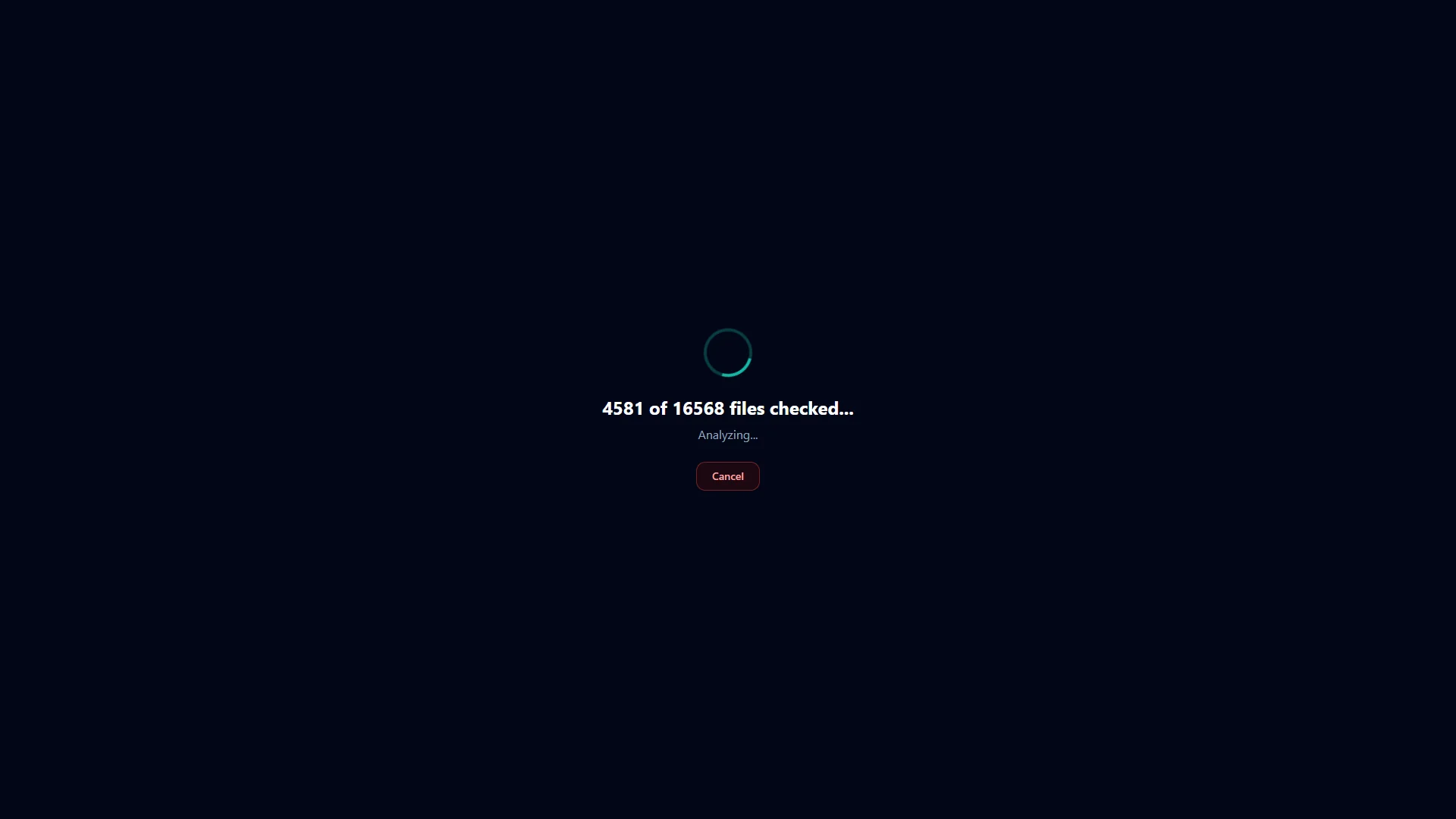
Scanning a large folder: “4581 of 16568 files checked” with a Cancel button
Built for huge collections. Tens of thousands of files are read in quickly – with a progress display and a cancel button.

Slideshow

Slideshow & video generator

Turn your photo and video series into narrated films: gentle Ken Burns effect, a title overlay, a story written by the AI in four narration styles, spoken by a female or male narrator or in your own voice, plus background music that automatically gets quieter while someone speaks. Part of Archivalis Pro.

A slideshow example. A little over a minute, with subtitles. It does not start by itself.
Script to read along

In March 2024 I travelled to New Zealand.

Afterwards I visit the Hobbiton Movie Set in Matamata,

built in 1999 on a working sheep farm for The Lord of the Rings trilogy.

A little further on at Signal Hill in Dunedin,

the 1940 Centennial Memorial incorporates

a historic stone brought from Edinburgh Castle.

Later I reach Lake Wakatipu, where Māori legend says the rhythmic rise

and fall of the water comes from the beating heart of a buried giant.

The next day I explore Ben Lomond,

named by a Scottish shepherd in 1847, rising 1,748 metres high.

Towards evening I stop at Lake Pukaki, where finely ground rock flour

suspended in glacial meltwater creates a unique natural phenomenon.

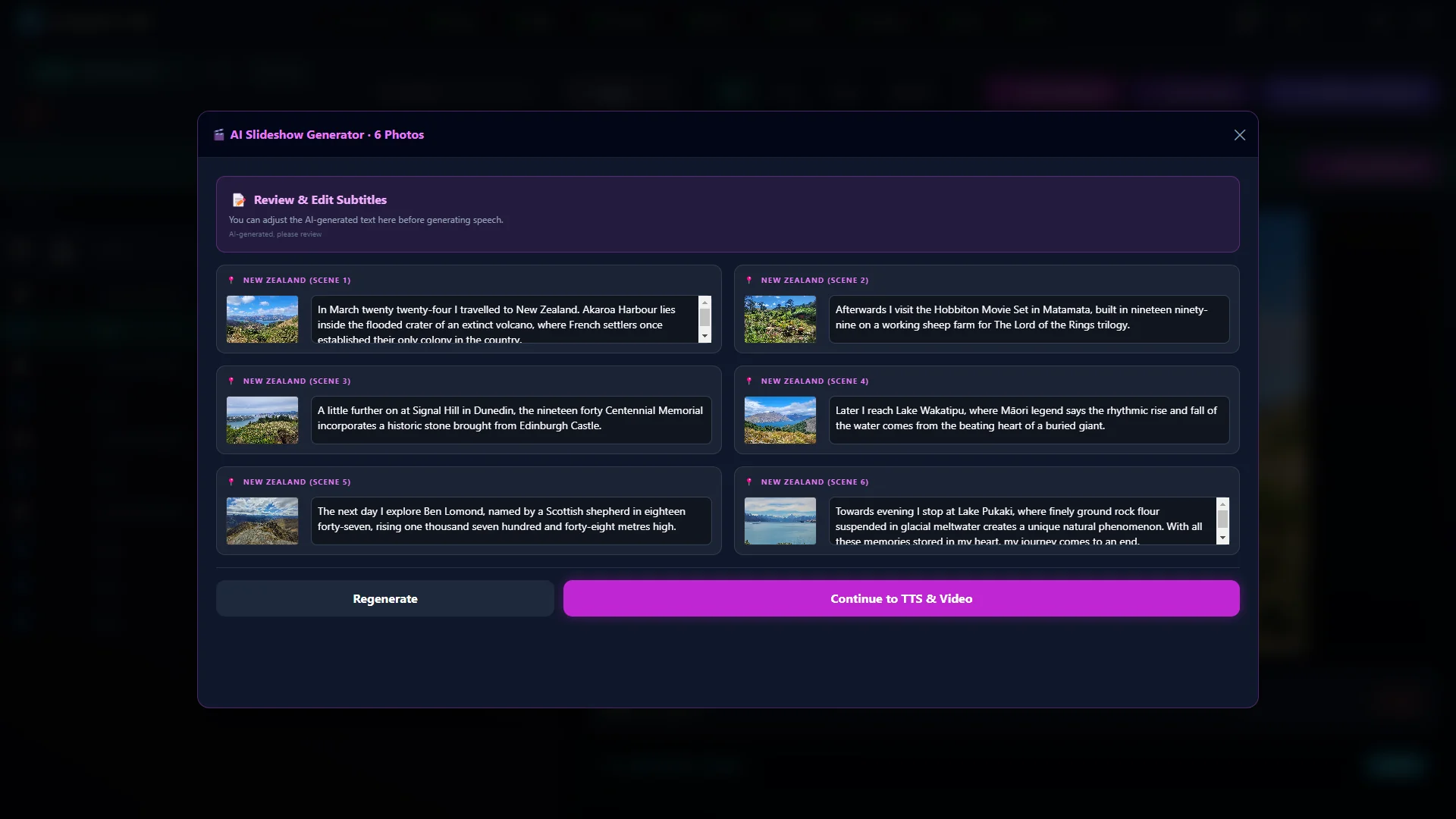
Slideshow generator: six travel photos from New Zealand, each with the AI-written narration ready to edit
Turn photos into a narrated video. The AI writes a story for your pictures with places, facts and a common thread. Edit every line before it is voiced.
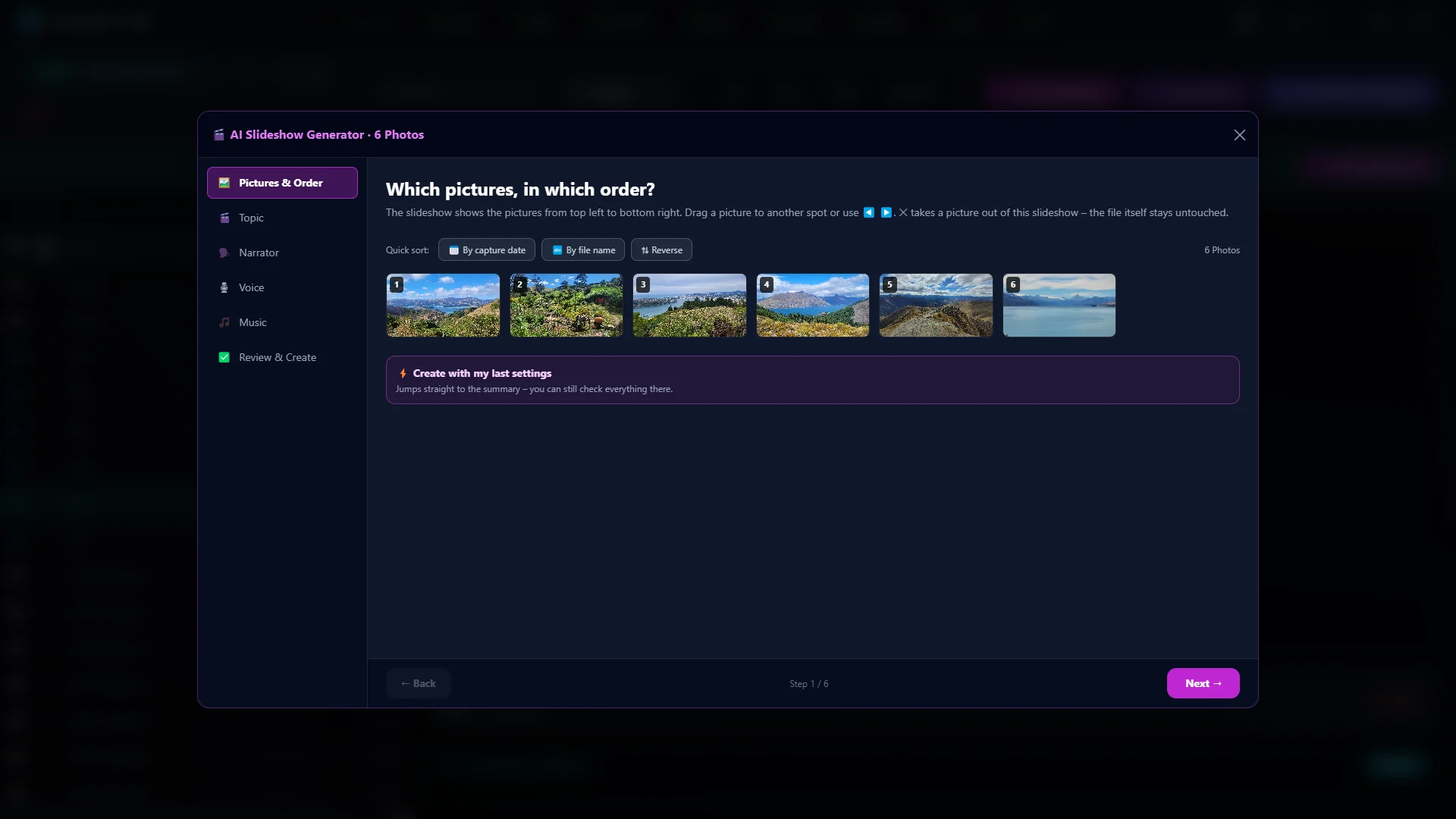
Slideshow step 1: six thumbnails in a row, with quick sort by date or file name above
Pick your pictures, set the order. Drag the photos into the right order or sort them by capture date in one click.
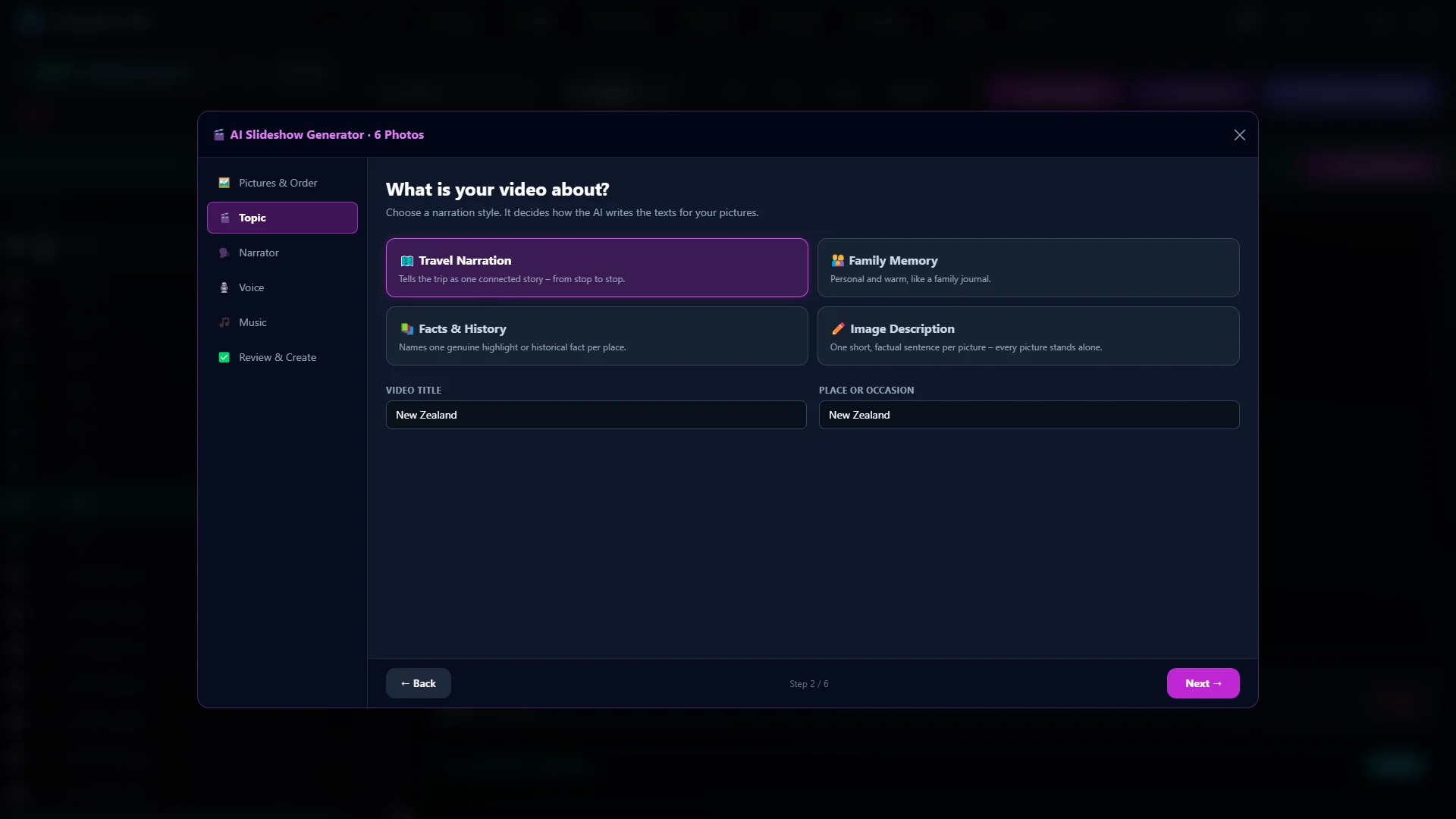
Slideshow step “What is your video about?” with four narration styles, video title and place
Four narration styles. Travel story, family memory, facts & history or a plain picture description – you decide how the AI writes about your pictures.
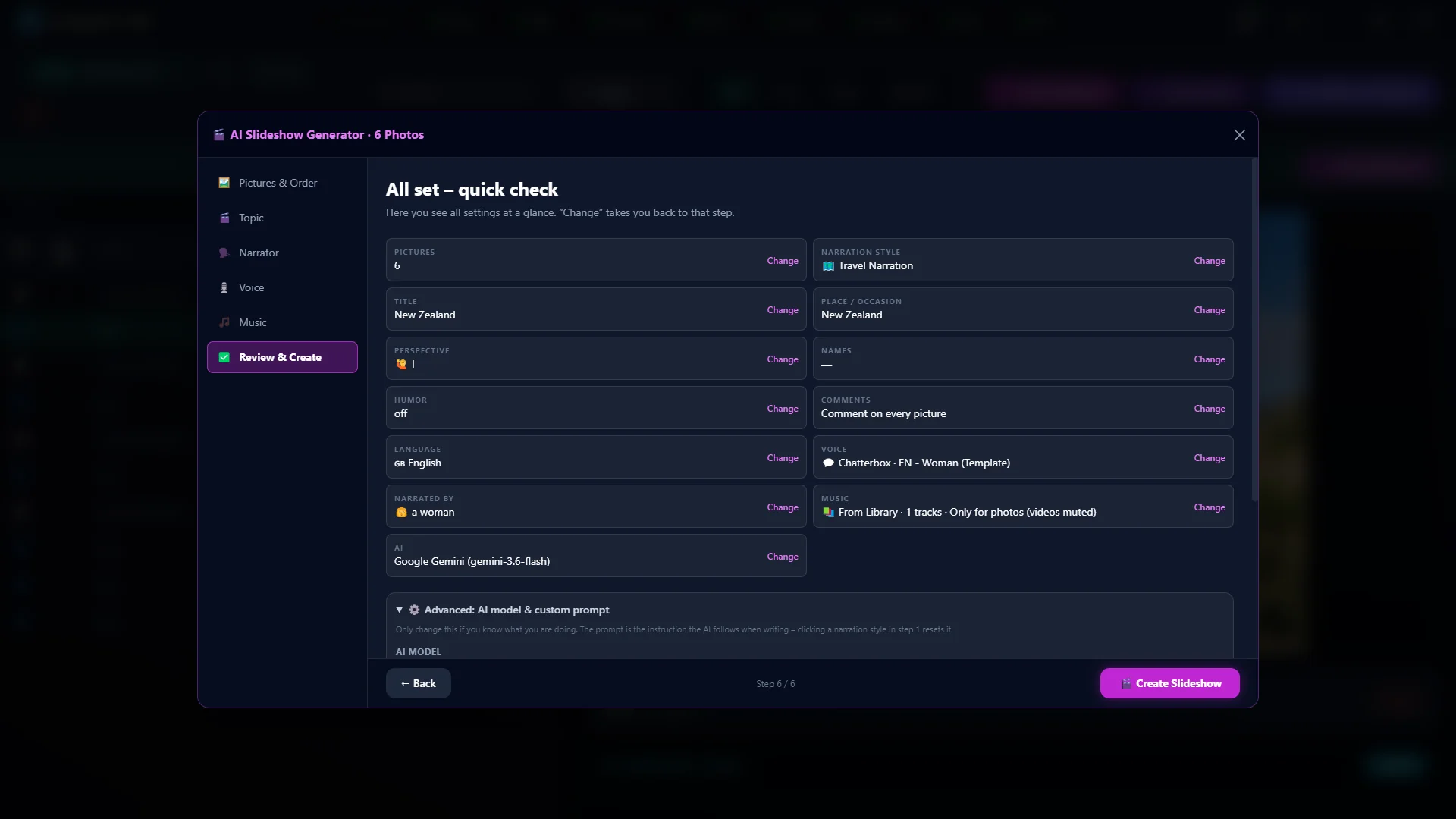
Slideshow step “All set – quick check”: overview of all settings with change buttons
Everything at a glance before you start. All slideshow settings in one summary – change any of them with a single click.
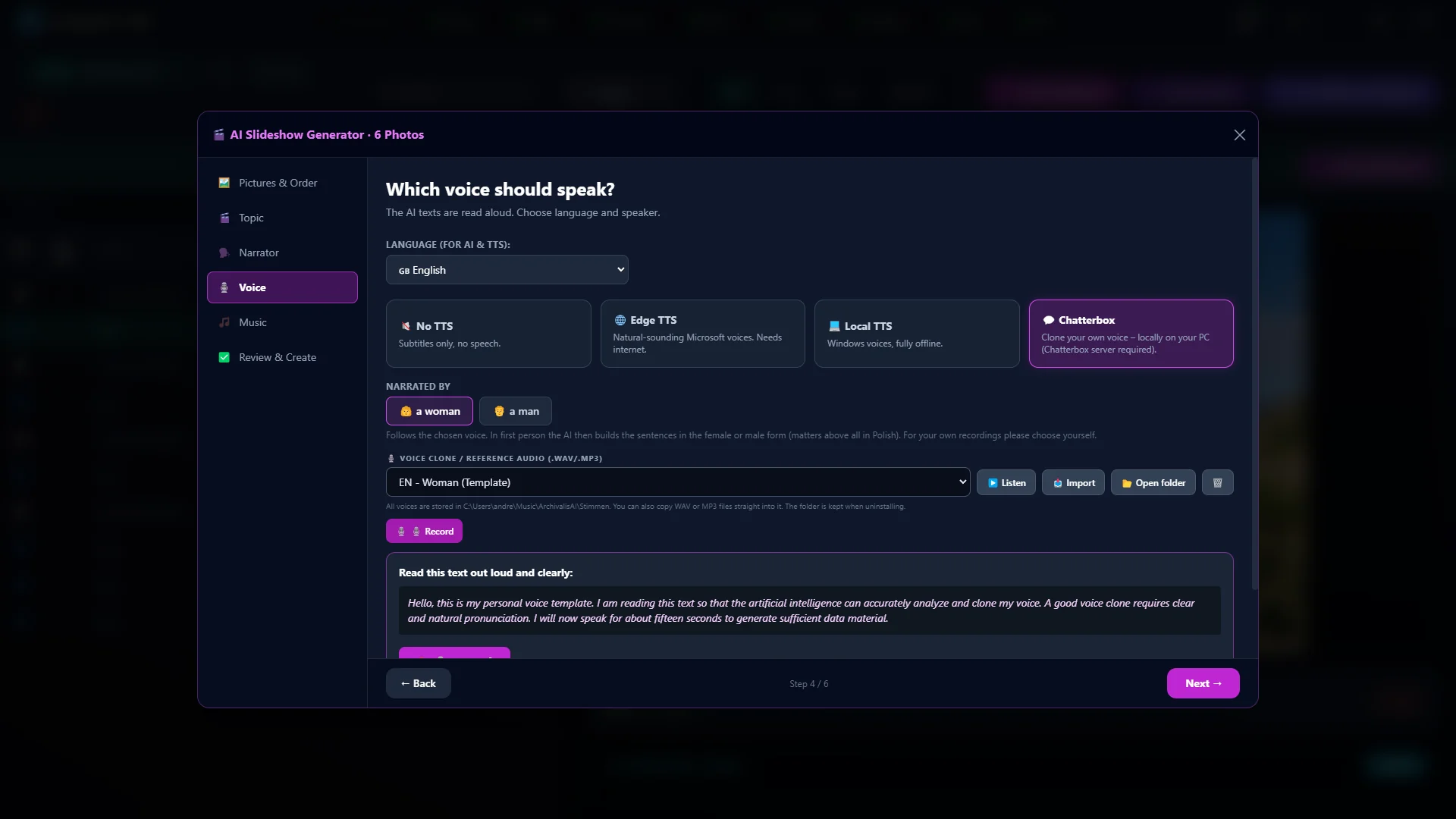
Slideshow step “Which voice should speak?”: choose speech output, female or male narrator, record your own voice
Your voice tells the story. Pick a female or male narrator, or clone your own voice locally – in English, German or Polish.

Podcast

Turn a script into a podcast you can listen to

Podcast studio

Turns a technical text into a podcast with two speakers who explain the content to each other. Made for the times when reading is not an option. You can voice a script you wrote yourself for free with Windows or Edge voices; with Archivalis Pro the AI writes the script from your document.

A podcast example: the user manual. Two voices, with subtitles. It does not start by itself.
Script to read along

Sarah: Welcome everyone! Today we are diving into Archivalis AI, a comprehensive management application designed to organize, clean up, and analyze your entire file library. I'm Sarah, and joining me is David, who is going to help us break down how all these features work. David, it's great to have you here!

David: Thanks, Sarah! It's great to be here. Archivalis really tackles file management from every angle—whether you are dealing with scattered documents, thousands of unorganized photos, or messy music collections.

Sarah: So David, let's start with the basics. How does Archivalis handle loading and finding files across our drives?

David: Well, Sarah, it starts with adding folders using the main folder button, including network drives. Archivalis scans everything, including subfolders, while automatically skipping hidden files and its own system storage so it never runs into itself. You can also exclude specific folders using the "Ignored Folders" option. Once loaded, you can filter as you type in the search box, narrow things down by category like Documents, Images, Videos, Audio, or Duplicates, and sort by name, size, capture date, or path.

Sarah: That sounds super smooth. And what about previewing items before we make any changes?

David: The preview pane on the right handles images, paginated PDFs, media files with a full transport bar, and text or spreadsheet formats. You can also right-click any document to summarize it, extract text, run custom AI prompts, or rename it with built-in validation to prevent invalid characters or duplicate names.

Sarah: Let's talk about duplicates, David, because I know everyone has extra copies cluttering up their drives. How does the software detect them?

David: That's one of its strongest features, Sarah. It doesn't just rely on file names. Archivalis compares actual file content using SHA-256 checksums. For files over one megabyte, it builds a quick fingerprint from the beginning, middle, and end, combined with the file size. So even if two identical photos have completely different names, it spots them. Then, with Auto Select features like "Keep Oldest," "Keep Newest," or "Keep from Folder," you can mark all extra copies for deletion in a single click.

Sarah: That saves so much manual work! What about organizing media like photos, videos, and music?

David: For photos and videos, Archivalis reads the real capture date—from EXIF metadata for images or the internal structure for videos—and files them neatly into year and month folders. Before anything is moved, a review window shows you every suggested path so you can tweak it by hand, and Archivalis remembers your preferences for next time. It can even resolve place names from GPS coordinates using OpenStreetMap, though that option is off by default for privacy.

Sarah: And for audio files, David? I know music collections can be notoriously chaotic.

David: Exactly, Sarah. When organizing music, it reads existing tags first. Any missing information—like artist, title, album, year, or genre—is filled in by your chosen AI provider, which analyzes the track context to recognize full albums consistently. Each artist gets assigned a single genre so their work isn't scattered. You can customize the track naming scheme, apply changes across entire albums, and write the metadata directly into the files without re-encoding the audio itself. Supported formats include MP3, M4A, FLAC, OGG, Opus, and WMA.

Sarah: That is incredibly thorough. Now, document analysis and AI sorting seem like major highlights here. How do those tools work?

David: For documents—including scanned PDFs processed via text recognition—you can run predefined templates for action items, dates, expense analysis, or custom prompts. When you use AI Sorting, the software reads your existing directory structure and places documents into the best-fitting folder or creates logical subfolders. It even suggests clean, standardized file names like date, sender, and title. If a duplicate name exists, it appends a number or sends redundant file moves to the trash, ensuring nothing gets accidentally overwritten.

Sarah: Privacy is a huge concern whenever cloud AI is involved. David, how does Archivalis protect user data during document processing?

David: They built a very detailed privacy layer, Sarah. There are eight independent filters covering names, IBANs and card numbers, amounts, phone numbers, email addresses, physical addresses, dates and places of birth, and customer or contract IDs. When active, these filters replace sensitive values with numbered placeholders before anything hits a cloud AI model. Once the AI responds, Archivalis restores the actual values locally on your PC. There is also a "Maximum Anonymization" mode that turns on all filters and masks every number, plus a preview button to inspect the exact filtered text before sending. And if you use a local AI model, everything stays entirely on your machine.

Sarah: That brings us to two really creative features: the Podcast Studio and the Slideshow Builder. Tell us about those!

David: The Podcast Studio transforms document insights into natural audio conversations between two speakers, just like what we are doing right now! It features a Vision toggle so local models can examine document page layouts, pictures, and tables. For audio playback, you can choose between Windows offline voices, EdgeTTS online voices, or Chatterbox for high-quality local speech synthesis.

Sarah: And what about creating slideshow videos from our media?

David: Clicking the slideshow option launches a guided six-step wizard. You select your photos and videos, arrange their order, define a topic and narrator perspective, pick background music and voice options, and review the prompt. Archivalis then renders a polished 16:9 full HD video featuring smooth camera motion, titles, transitions, background music, and full spoken narration.

Sarah: It really sounds like a complete toolkit for keeping digital life organized and turning raw files into actionable content. Thanks for breaking it all down so clearly, David!

David: My pleasure, Sarah! It's a fantastic tool to explore.
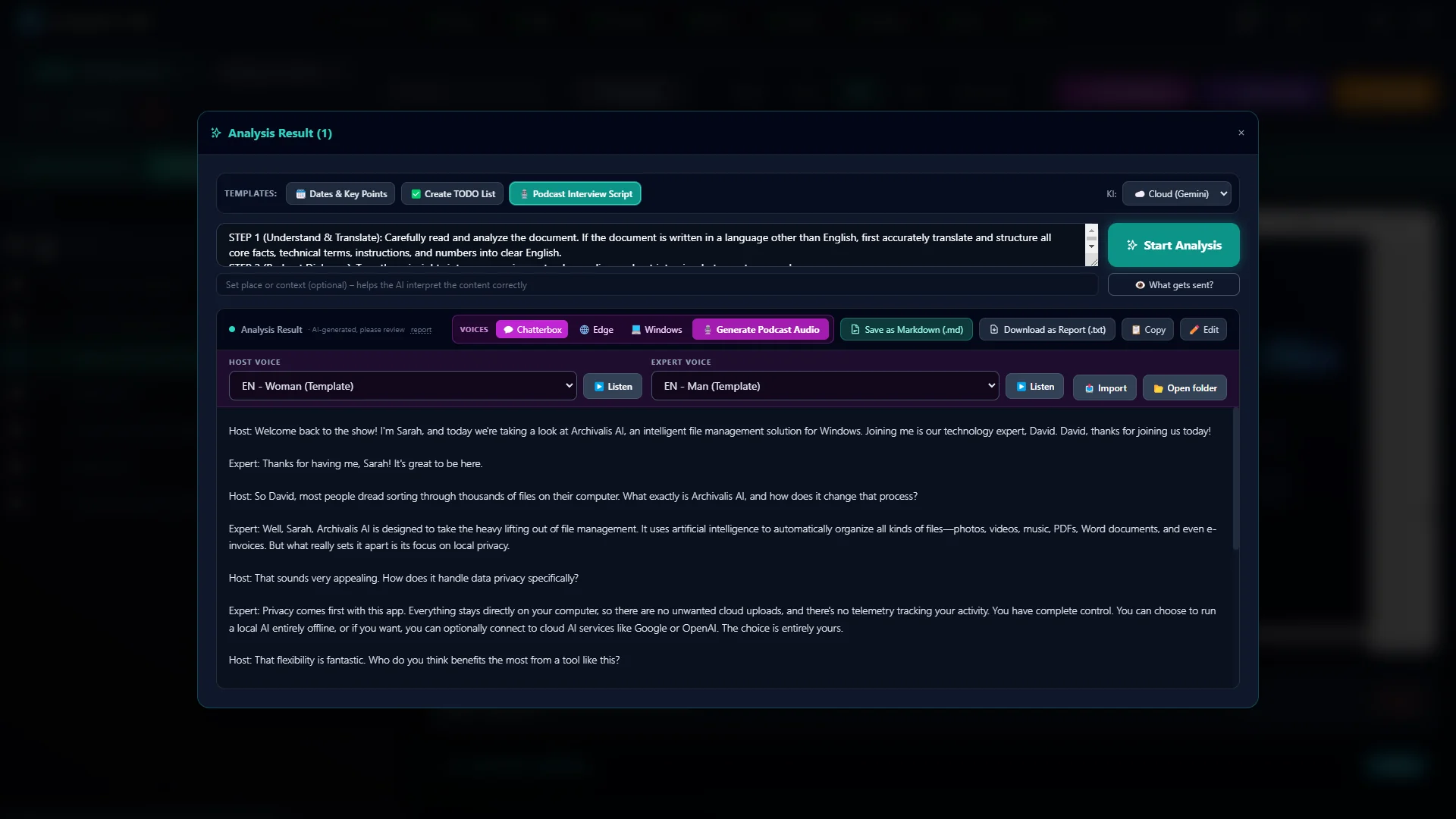
Podcast studio: voice selection for host and expert, with the conversation script below
Documents as a podcast. The AI turns your files into a lively two-voice conversation and exports it as an MP3.
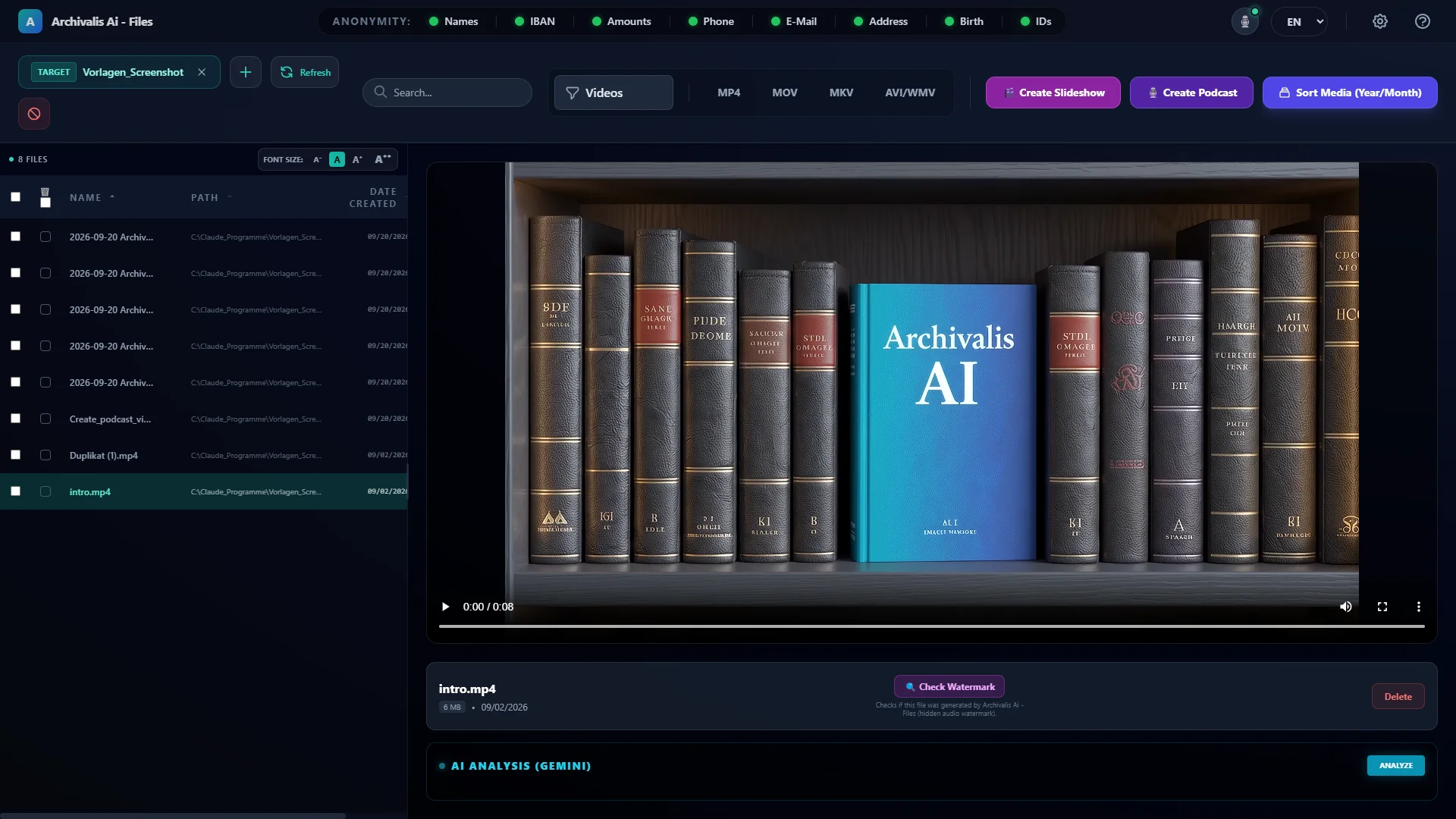
Video preview in the file list with the “Check watermark” button
Clearly marked as AI-generated. Once the local speech output Chatterbox is set up, every audio track Archivalis creates carries an inaudible watermark. “Check watermark” proves it at any time.

Privacy

Redact personal data before it reaches the cloud AI

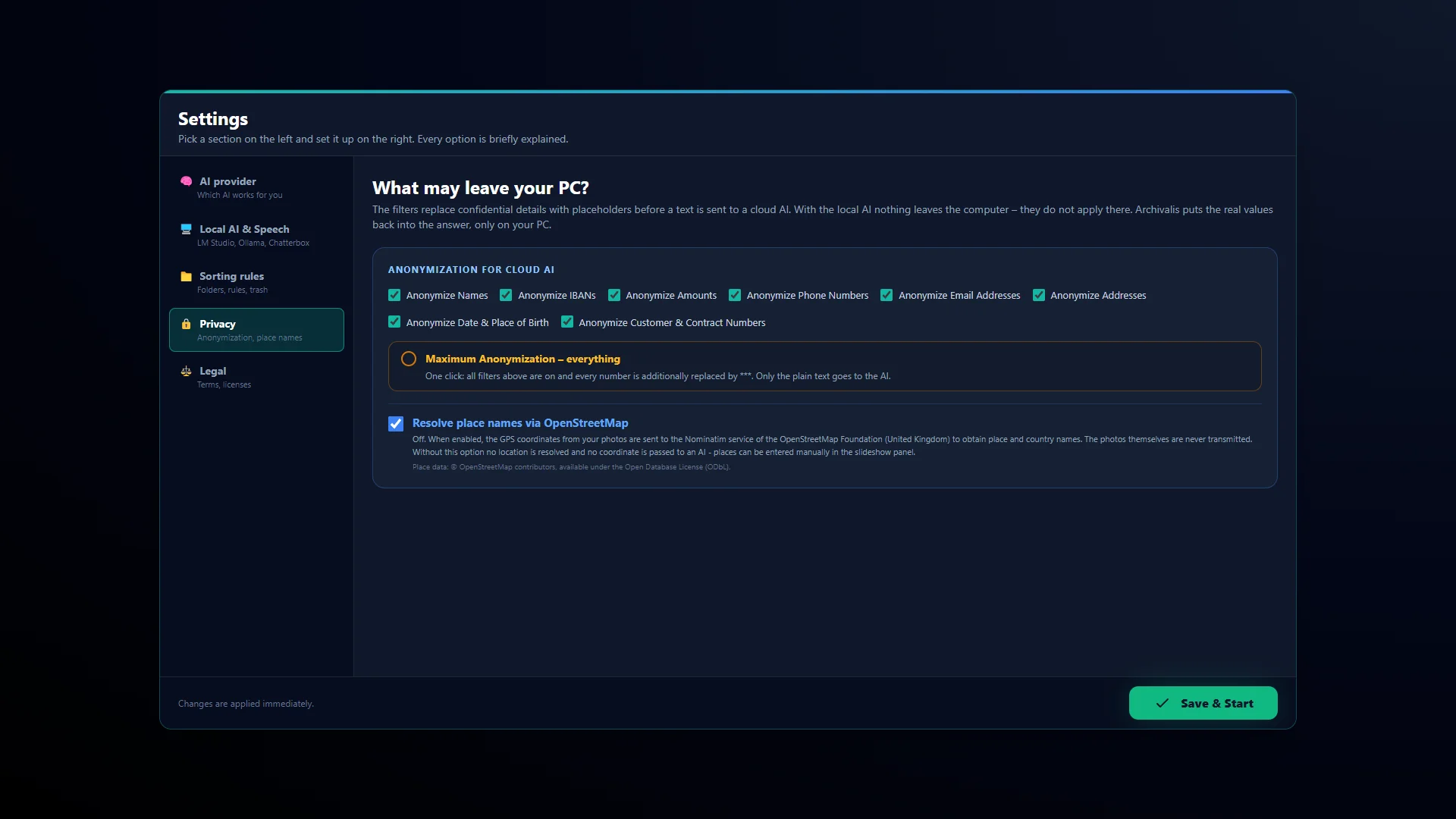
Anonymization filters for cloud AI

Eight filters replace names, IBANs, monetary amounts, phone numbers, email addresses, postal addresses, dates of birth and contract numbers in the document text and the file name with numbered placeholders like [IBAN_1] before it goes to a cloud AI. “Maximum anonymization” switches on every filter and additionally replaces every number in the document, the harmless ones included. It does not cover images, music tags, folder names or place names. A button shows you the exact text that will leave your computer before it does. Name detection works from a list of first names, so it recognizes name-shaped words rather than people. In technical texts full of proper nouns and country names it does get things wrong. With a local model the question never comes up.

Settings “What may leave your PC?”: eight anonymization filters and the “Maximum anonymization” switch
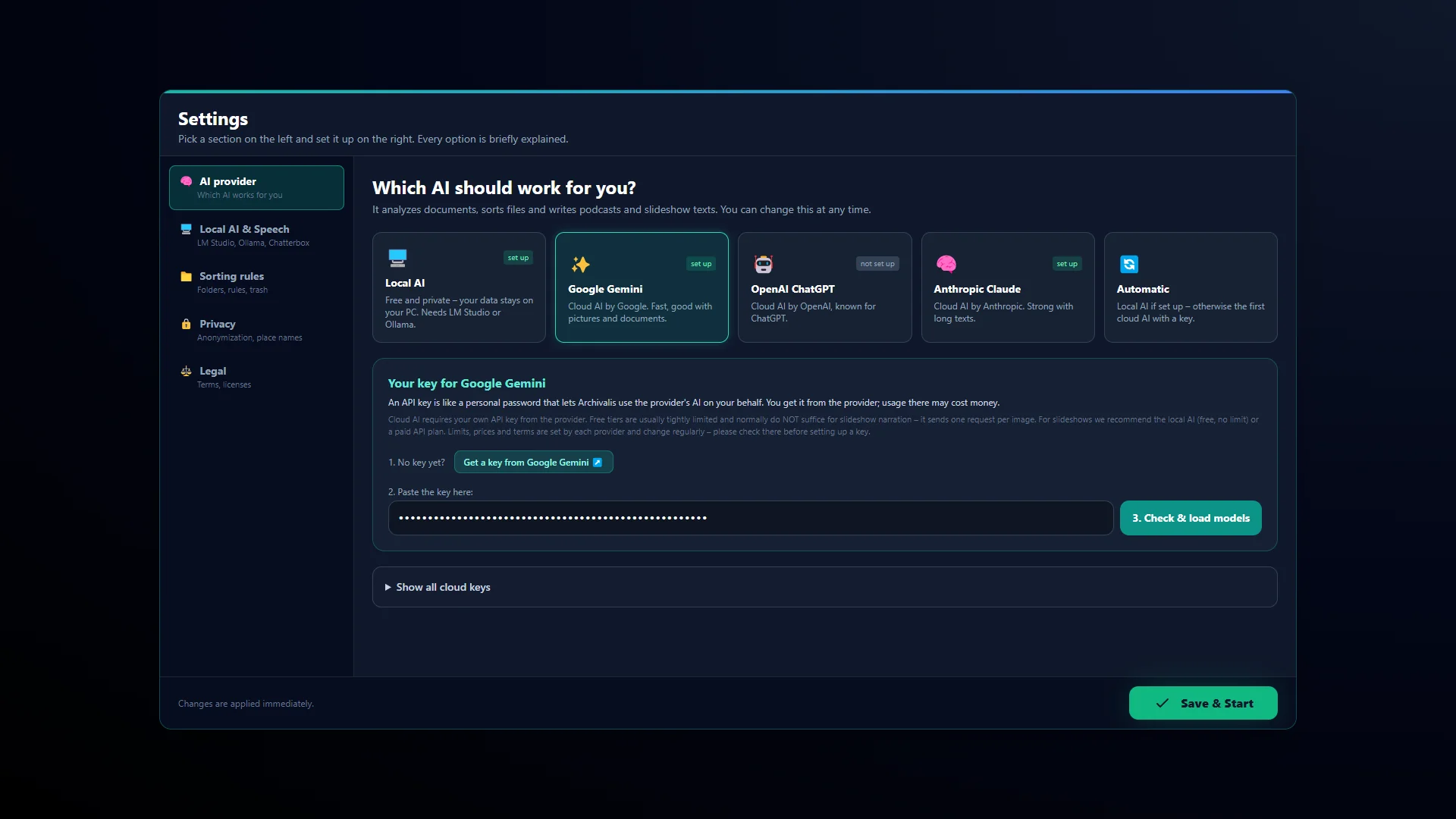
Settings “Which AI should work for you?”: cards for local AI, Google Gemini, OpenAI ChatGPT, Anthropic Claude and Automatic
You choose which AI does the work. No running costs and offline with local AI, or Google Gemini, ChatGPT or Claude with your own key.
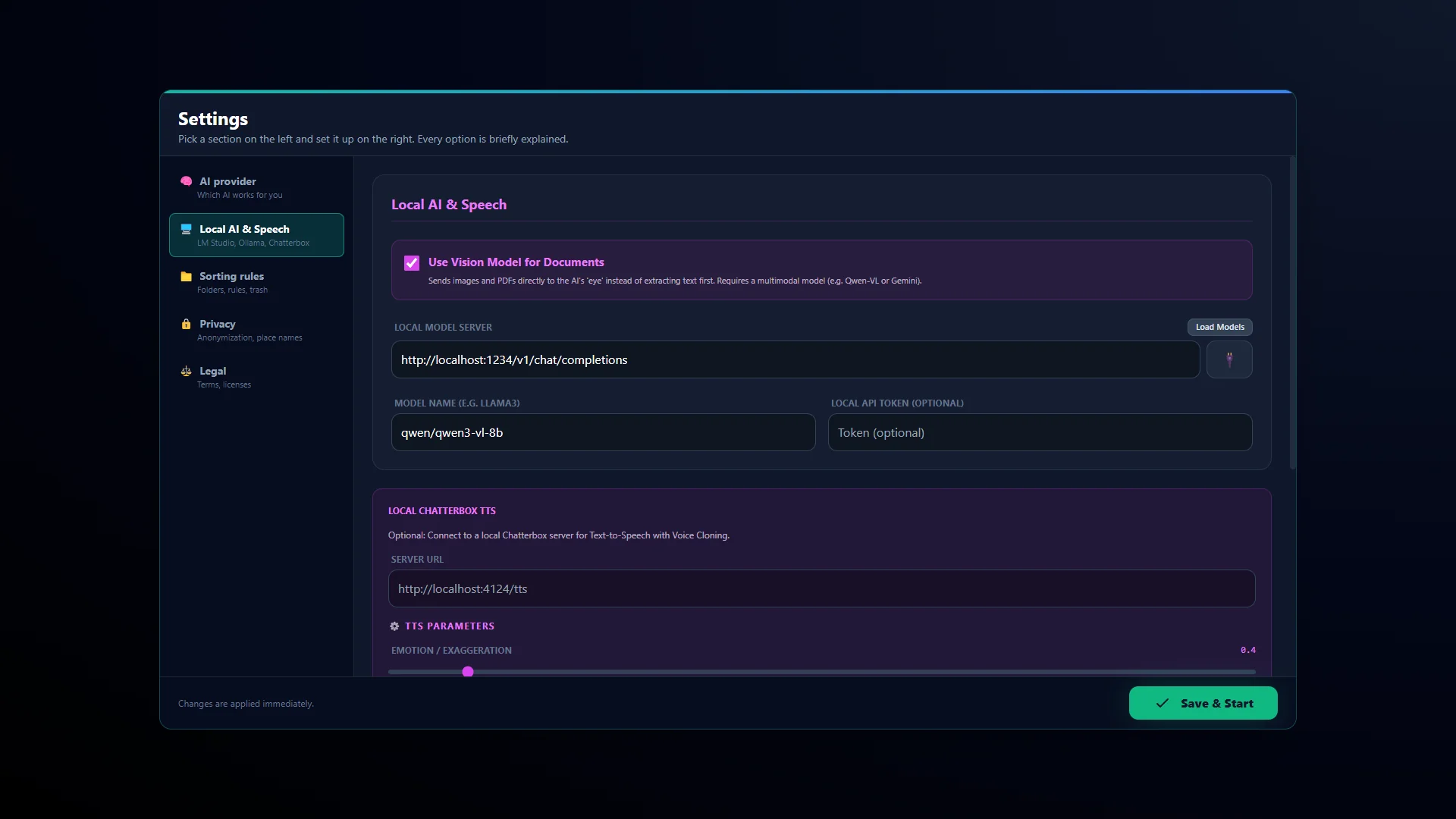
“Local AI & Speech” settings: local model server address, model name and vision option
AI on your own computer. Connect Archivalis to LM Studio or Ollama. The AI then works offline and without running costs.

Free and Archivalis Pro

Free, no AI needed

  • File list with preview
  • Duplicate search
  • Filing photos and videos by capture date
  • Sorting music by existing tags and file names
  • Renaming, filtering and the recycle folder
  • Podcasts from scripts you write yourself, with Windows or Edge voices
  • Anonymization preview

With Archivalis Pro

  • Filing and naming documents
  • Summaries, deadlines and to-do lists
  • AI recognition of music details
  • The narrated slideshow
  • Podcasts from documents
  • Chatterbox voices and voice cloning

Archivalis Pro is a one-time purchase in the Microsoft Store: no subscription, no renewal, and the Store shows the price. You can try every Pro feature free for 14 days first; you start the trial yourself, the first time you open a Pro feature. Afterwards the free features and everything you have created stay with you.

Even with Archivalis Pro you bring the AI yourself: either a local model through LM Studio or Ollama, both free, or your own paid API key from Google, OpenAI or Anthropic. That software is not included, and the program does not come with a key.

Settings “Which AI should work for you?”: cards for local AI, Google Gemini, OpenAI ChatGPT, Anthropic Claude and Automatic
You choose which AI does the work. No running costs and offline with local AI, or Google Gemini, ChatGPT or Claude with your own key.

What leaves your computer

With no cloud key entered, no file leaves your computer. If you enter your own key from Google, OpenAI or Anthropic, you are deliberately sending the content you select to that provider — your decision, not a default setting.

Your API keys stay on your computer and are not transmitted to Archivalis AI.

A few things do need a connection, and you choose each one yourself: the Edge voices (the text then goes to Microsoft), the one-time setup of the local speech output Chatterbox, and location lookup, which works out where a photo was taken from its coordinates via OpenStreetMap. That one is switched off by default. Text recognition in scanned documents runs entirely on your device.

  1. Cloud provider Only if you enter your own key, and only with the content you select for it.
  2. Speech output Only if you choose it: the Edge voices send the text to Microsoft, setting up Chatterbox fetches Python and the voice models once.
  3. OpenStreetMap Only if you switch location lookup on. Coordinates go out, no file.
Schematic drawing. On the left your computer with your files and your keys, on the right the three places a connection is made to at all.

Sort files into folders automatically

For every file the AI suggests a target folder. Suggesting is all it does. Nothing moves until you agree — and every single suggestion can be changed or rejected first.

AI sorting review window: sorted documents on the left, target folder, new file name, AI reasoning and an invoice preview on the right
AI sorts and names your documents. Target folder, a clear file name and the AI's reasoning – you review everything before a single file is moved.

System requirements

  • Windows 10 or 11 (64-bit), developed and tested on Windows 11.
  • 8 GB of RAM (16 GB recommended) and about 1 GB of free disk space for the program.
  • Only for the local speech output Chatterbox with voice cloning: about 4 GB extra and an internet connection during first-time setup. With an NVIDIA graphics card with CUDA (roughly GeForce GTX 900 or newer) it runs fast. Without such a card, including with AMD or Intel graphics, the CPU does the work and each section takes minutes instead of seconds. The Edge and Windows voices do not need a graphics card.
  • For local AI (LM Studio or Ollama): a capable graphics card, NVIDIA recommended; depending on the program, AMD or Intel also work.

Once the local speech output Chatterbox is set up, every generated voice recording carries an inaudible watermark that can be verified in the program at any time.

Summaries, narration voices and podcasts come from AI models. They can be factually wrong and should be checked before you use them.

“Local AI & Speech” settings: local model server address, model name and vision option
AI on your own computer. Connect Archivalis to LM Studio or Ollama. The AI then works offline and without running costs.

Languages

Deutsch English Polski

The interface comes in German, English and Polish. You choose on first start and can change it in the settings at any time.

Questions and answers

Does the program work without internet?

Pull out the network cable: the program keeps working, and so does the AI if a local model is installed. Text recognition in scanned documents also works offline. Only things you switch on yourself need a connection: a cloud AI, the Edge voices, the one-time Chatterbox setup and location lookup via OpenStreetMap — that one is switched off out of the box.

Is anything recorded about what I do?

No. The program sends no usage data. Your API keys stay on your computer and are not transmitted to me.

Is the program free?

Yes. The download from the Microsoft Store is free, and the basic features stay free for good: file list and preview, duplicate search, photos and videos by capture date, music sorting by existing tags, renaming, filtering and the recycle folder. The AI features, the slideshow and the Chatterbox voices are unlocked by Archivalis Pro – a one-time purchase, no subscription. The Store shows the price; you can try Pro free for 14 days first.

Does the AI cost extra?

The AI features are part of Archivalis Pro, a one-time purchase in the Microsoft Store with no subscription; you can try them free for 14 days first. The program does not come with the AI itself: either you install a local model through LM Studio or Ollama, both free, or you enter your own key from Google, OpenAI or Anthropic. You pay for using that key directly to the provider.

What happens to the files I delete?

They end up in the recycle bin, not in nothing. That holds even when you clear out a hundred duplicates at once.

Do I need a particular graphics card?

It is worth having for the local speech output Chatterbox with voice cloning: with an NVIDIA card a section takes seconds; without one the CPU does the work and it takes minutes. The Edge and Windows voices need none. For a local AI (LM Studio or Ollama) a capable card makes sense, NVIDIA recommended.

Does it run on Windows 10?

Yes. Archivalis runs on 64-bit Windows 10 and 11. I developed and tested it on Windows 11.

If something does not work